SK8-2-YOU Docs
How to request service, plan a rink visit and track a pair through return.
Register a player
- Open Players and choose Register player. Enter the player, the skate setup and the home rink.
- Add a guardian or main contact if someone else handles pickup, then save the player.
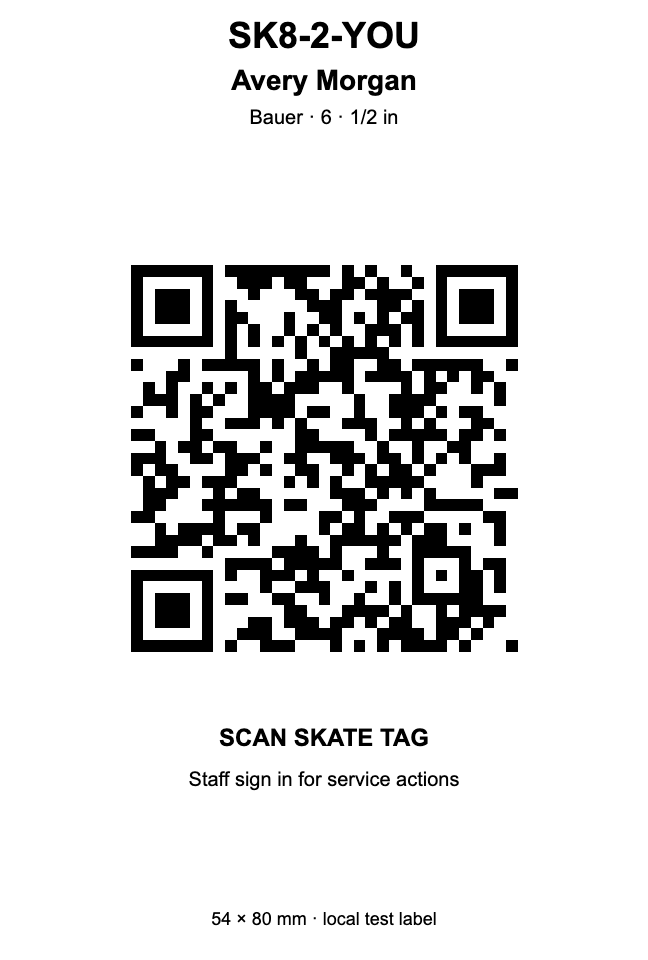
Print and test a skate tag from your phone
- On your phone, sign in as staff. Open Players and tap Print tag next to the player.
- For a thermal printer, tap Save label PNG. Open the printer’s mobile app and import the PNG from your phone’s Downloads or Files. Select the label size loaded in the printer. The tag is designed for 54 × 80 mm. Keep the whole QR code and its white border visible in the preview.
- If your printer appears in your phone’s print menu, you can also tap Print tag on the tag page and choose your printer. On iPhone, use an AirPrint printer on the same Wi-Fi network. If the preview cuts off the label, use the PNG instead.
- Print one label first. Before attaching it, open your phone’s Camera app, point it at the printed QR code, and tap the link. Check that it opens the right skate record. If it won’t scan, check that the QR code and white border printed clearly, then reprint and try again.
The same QR opens service history for customers and the current visit for signed-in staff.
Request a pickup
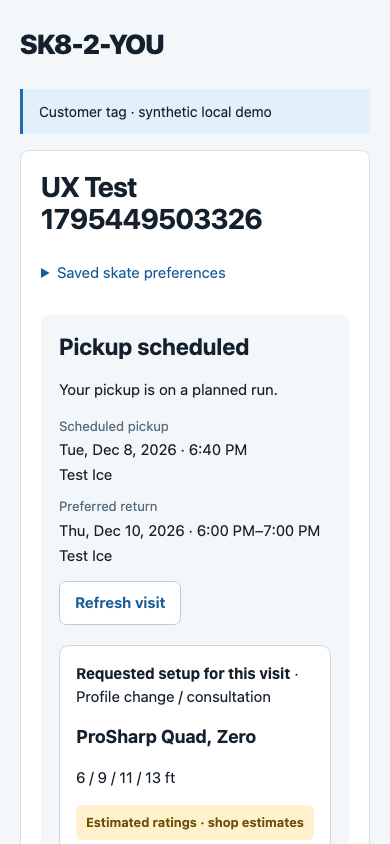
- Scan the skate tag and choose to request pickup. New customers can start from the homepage.
- Keep the saved setup for routine sharpening or explore the Profile Picker to request a consultation.
- Enter a preferred rink, date and time window for pickup and return. Submit the request, then check the tag page for the assigned time.
Your preferred window becomes a scheduled pickup when an operator assigns it to a run.
Plan a rink run
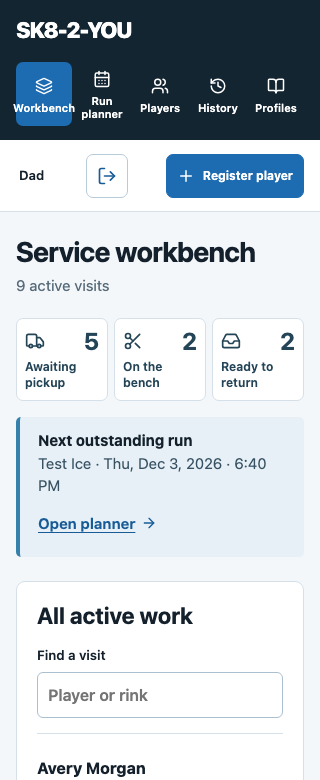
- Open Run planner and select pairs for pickup or return at the same rink.
- Check the requested windows, visit time, operator and capacity. Resolve any schedule conflicts shown on the board.
- Assign the selected stops. The assigned time appears on each customer tag.
If a plan changes before the stop is complete, release the outstanding stops and assign a new run.
Receive, sharpen and return skates
- Find the visit in Workbench or scan the same skate tag while signed in. Check the player's name and the requested hollow and profile.
- Select Receive skates when you have the pair. Add any damage or service notes to the visit. Select Finish sharpening when the work is complete.
- Select Mark returned after handoff. Open History to find the completed visit and the setup recorded for it.
Choose a skate profile
- Open Profiles and choose a template in Build a setup. Set blade length, hollow and player weight to see the blade zones and estimated feel.
- Use the library search to find a profile, then choose View in builder. Check the library rating source before comparing setups.
- Choose Use saved setup for routine sharpening. For a change, choose a profile with the pickup request or update the player's preference for future visits.
James should confirm compatibility and the work requested before making a profile change.
Check the SMBcrm connection
- Open a player record and check the contact details for the person who handles pickup.
- Open a service visit and look for SMBcrm delivery. Queued means the app has saved the visit and will send its current stage. Waiting to retry means delivery will run again automatically.
- When the visit says Synced, open Skate Service Visits in SMBcrm and check the guardian and the matching visit reference. The card follows pickup requested, pickup scheduled, received, sharpening finished and returned.
- If the visit says Needs review, share the visit reference with the app administrator. Keep using the existing skate visit while the administrator checks the link.
SMBcrm delivery sends guardian contact details and the current visit stage to the skate service pipeline. Customer messaging is managed separately.